Professional Meeting Room Content Sharing
Yealink MShare Screen Sharing Box for Enterprise Meeting Rooms
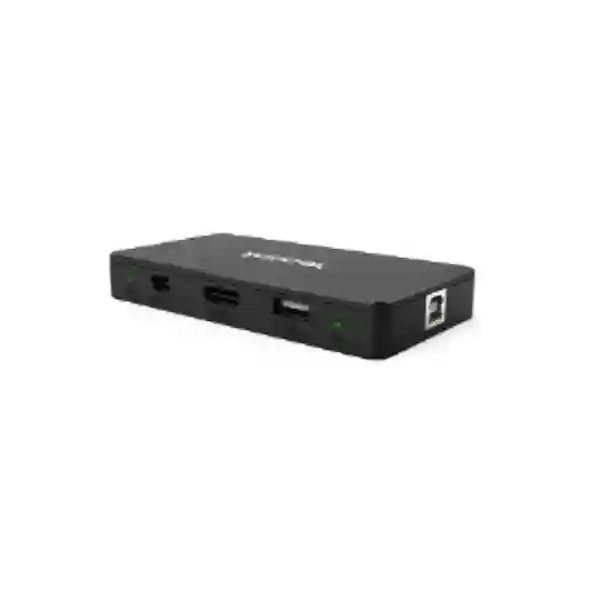
Yealink MShare is a dedicated conference-room content sharing unit that gives business users a straightforward bridge between presenter laptops and compatible Yealink meeting-room systems. It supports Full HD content sharing up to 1080p at 30 frames per second and carries presentation audio, making it suitable for slides, spreadsheets, web applications, training material, dashboards and video. The device accepts wired content through HDMI or Mini DisplayPort and can also support wireless presentation through the Yealink WPP20 presentation pod. Its built-in dual-band wireless access point allows the compatible pod to communicate without requiring organizations to redesign the room network simply to enable presentation sharing.
For procurement teams, the value of MShare is less about adding another box to the table and more about standardizing how content enters a meeting. In mixed laptop environments, inconsistent adapters, long cable runs and uncertain room compatibility can delay meetings and create recurring support calls. MShare provides a defined presentation path designed around the Yealink room ecosystem. A presenter can use an available wired input, while organizations that require greater mobility can add the compatible WPP20 for one-click wireless sharing. This makes the product relevant to boardrooms, executive rooms, training rooms, customer briefing areas and standardized meeting-room fleets.
FourTeck supplies Yealink MShare in Uganda with procurement guidance intended to reduce ordering errors. Before quotation, organizations can identify the installed Yealink room system, laptop connector requirements, number of rooms, preferred wired or wireless workflow and accessory needs. This is important because MShare is an integration component rather than a standalone display receiver for every possible conferencing platform. Correct room-system compatibility should therefore be confirmed as part of the bill of materials.
Instant Specifications & Procurement Fact Rail
Yealink MShare
Meeting-room content sharing
1080p / 30fps
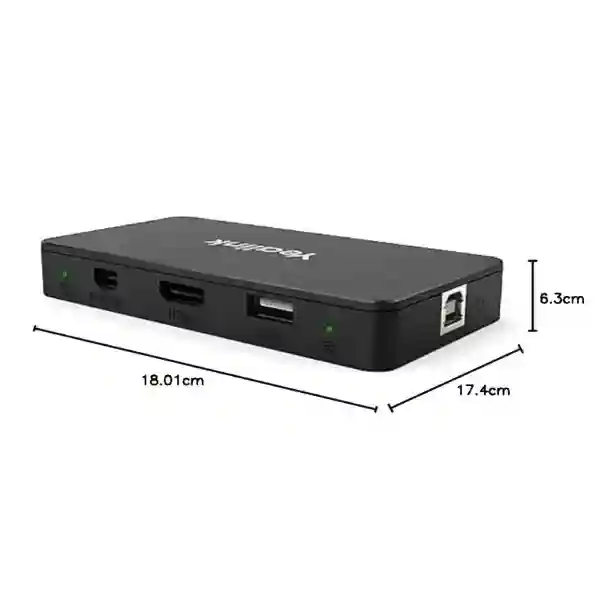
HDMI + Mini-DP
Type-A + Type-B USB 2.0
WPP20 compatible
The procurement baseline is a Yealink MShare content-sharing box with wired and optional wireless presentation capability. Buyers should distinguish MShare from newer products such as MShare E2 because connector layouts and deployment relationships differ. The original MShare provides HDMI and Mini DisplayPort inputs, whereas a quotation for another generation should not be assumed to carry the same interfaces. Wireless presentation depends on the compatible Yealink WPP20 pod, which may be supplied separately. Stock, commercial warranty terms and lead time should be confirmed on the quotation because these can vary by shipment and project.
Operational Product Architecture & Overview
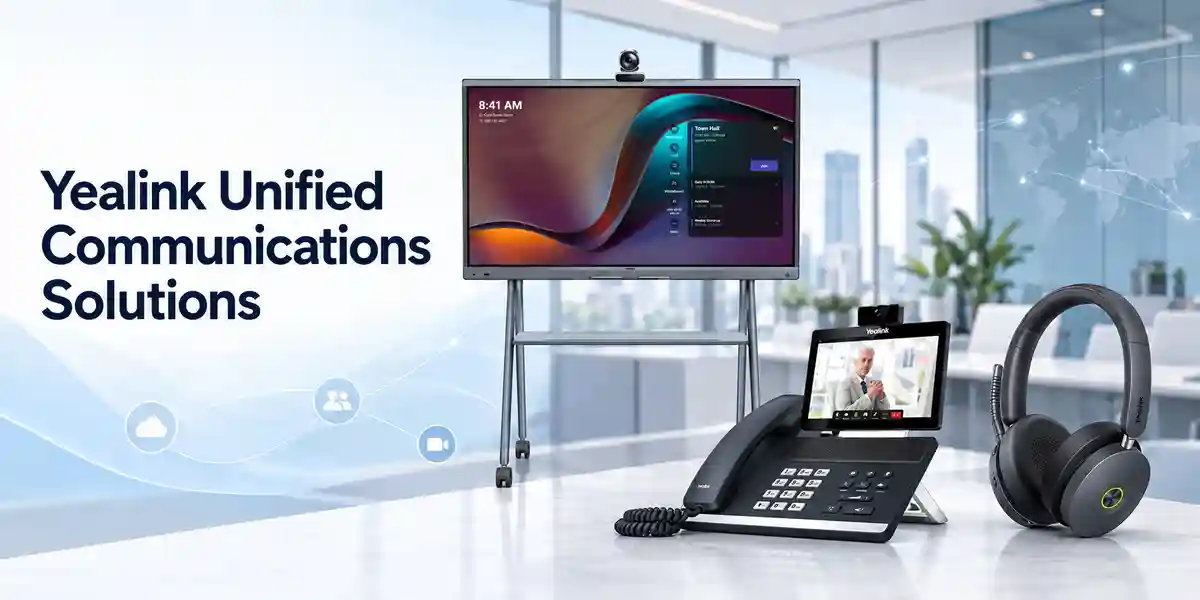
MShare sits in the presentation path of a compatible Yealink room deployment. Its job is to ingest a presenter’s content and make that content available to the room system in a predictable format. For wired presentation, the laptop is connected through HDMI or Mini DisplayPort. For wireless presentation, the WPP20 pod can be paired through MShare and then moved to the presenter’s computer. This architecture is useful because it separates the act of sharing content from the user’s need to understand the room’s underlying conferencing computer, camera, microphone or display wiring.
The device supports content at up to 1080p and 30 frames per second. That specification is well suited to business presentation material, office applications, browser demonstrations, diagrams and ordinary video playback. The product also supports audio sharing, allowing presentation sound to travel with the visual content when the deployment is correctly configured. For procurement planning, this matters because a presentation system that transports video but not audio can create an unexpected gap in training, marketing or multimedia sessions.
A key architectural feature is the built-in 2.4 GHz and 5 GHz wireless access point used for Yealink wireless presentation. The approach reduces dependence on a customer’s production wireless LAN for the basic MShare-to-pod relationship. This can simplify room deployment where corporate wireless policies are tightly controlled or where guest presenters should not need credentials merely to show a screen. It does not remove the need for proper information-security policy; instead, it gives IT teams a defined device relationship to assess and document.
Physical interfaces are deliberately focused. One HDMI input accommodates the most common full-size digital presentation connection, while one Mini DisplayPort input addresses compatible notebooks and adapters. A USB 2.0 Type-B connection provides the room-system side of the deployment, and a USB 2.0 Type-A port supports functions including pairing with the compatible wireless presentation pod. The supplied cable set should be checked at order stage, particularly for projects where MShare will be concealed beneath a table, mounted inside furniture or positioned away from the room computer.
The practical problem MShare addresses is meeting-room friction. Users often enter a room with only minutes before a customer call or management review. If the presentation path depends on an unknown adapter, an unsecured personal casting application or a sequence of manual display changes, the room becomes harder to support. Standardizing on a known sharing accessory gives facilities and IT teams a repeatable design. The same connection labels, cabling plan and user instructions can be replicated across multiple rooms, reducing the number of unique procedures support staff must maintain.
MShare should nevertheless be purchased as part of a validated room architecture. It is not a generic network media player and should not be specified solely because a room has an HDMI display. Buyers should provide the model of the existing Yealink conferencing system and any room-compute details when requesting a quote. This allows the supplier to verify whether MShare is the appropriate generation, whether a WPP20 is required, and whether cable lengths and physical placement suit the furniture layout.
Enterprise Business Outcomes & Value Analysis
1. Presentation Performance
Up to 1080p/30fps sharing provides a practical balance for business documents and motion content. The defined presentation format helps room designers plan display expectations without overspecifying a presentation source that the collaboration workflow does not require.
2. Meeting Reliability
Dedicated wired inputs reduce reliance on ad-hoc casting methods. Organizations can keep a known HDMI path available for visitors while supporting an approved wireless workflow for users equipped with WPP20.
3. Fleet Scalability
A repeatable room standard is easier to roll out across multiple floors or branches. IT teams can document one presentation process, maintain a consistent accessory set and simplify room handover.
4. Controlled Access
The built-in wireless access point for the presentation pod provides a defined wireless relationship rather than requiring every presenter to join a corporate WLAN solely for screen sharing. Corporate security review remains essential.
5. Operational Simplicity
Clear HDMI, Mini-DP and USB roles help support teams create simple room instructions. Fewer improvised adapters and presentation methods can mean fewer pre-meeting troubleshooting calls.
6. Lifecycle Cost Control
A standardized accessory can lower indirect support costs by reducing room-to-room variation. Buyers should include spare cables, presentation pods and replacement planning when calculating the real operating cost.
7. User Flexibility
Wired and wireless options allow organizations to accommodate different presenter preferences. A guest can use a cable while an internal user can use a paired presentation pod where policy permits.
8. Cleaner Room Design
MShare can be planned as part of structured table and room cabling rather than leaving permanent loose adapters at the display. Good cable management improves usability and helps protect connectors.
Key Hardware & Software Highlights
| Component | Capability | Operational Outcome |
|---|---|---|
| Presentation engine | Up to 1080p/30fps | Clear business content and smooth everyday presentation motion. |
| HDMI input | Digital video and embedded audio | Common wired connection for modern laptops and adapters. |
| Mini DisplayPort input | Alternative wired source | Supports room standards that retain Mini-DP presentation cables. |
| Wireless access point | 2.4 GHz / 5 GHz | Enables compatible Yealink wireless presentation workflow. |
| USB Type-A | USB 2.0 | Supports WPP20 pairing and accessory workflow. |
| USB Type-B | USB 2.0 | Provides the system-side connection used in compatible deployments. |
These interfaces form a deliberately narrow architecture. MShare does not attempt to replace a room computer, camera or conferencing application. Its strength is providing a dedicated content-ingest function inside a compatible Yealink room design. That distinction is important when comparing it with standalone wireless presentation gateways, which may have different network, display-output and collaboration features.
Technical Specifications Ledger
| Specification | Yealink MShare | Procurement Note |
|---|---|---|
| Product type | Screen sharing box | Designed as a component of compatible Yealink meeting-room solutions. |
| Maximum content sharing | 1080p at 30fps | Suitable for business presentations and common multimedia content. |
| Audio sharing | Supported | Validate room audio routing during commissioning. |
| HDMI input | 1 | For wired laptop content sharing. |
| Mini-DP input | 1 | Confirm adapter requirements for USB-C-only laptops. |
| USB Type-B | 1 × USB 2.0 | System-side connectivity. |
| USB Type-A | 1 × USB 2.0 | Used in the wireless presentation pod pairing workflow. |
| Wireless presentation | Compatible with Yealink WPP20 | Pod may need to be purchased separately. |
| Wireless AP | Built-in 2.4 GHz / 5 GHz | Designed for Yealink wireless presentation devices. |
| Operating temperature | 0–40°C | Install in a ventilated indoor environment. |
| Operating humidity | 10–95% | Avoid condensation and uncontrolled furniture cavities. |
Not every purchasing decision can be made from an interface list. Cable routing, the specific Yealink room-system generation and the presenter’s laptop ports determine whether the deployment feels effortless in daily use. For example, a modern fleet dominated by USB-C notebooks may need approved USB-C-to-HDMI adapters even though MShare itself has HDMI. Similarly, organizations intending to use WPP20 should confirm pod availability and compatibility rather than assuming that wireless hardware is included with every MShare shipment.
Configuration & Sizing Worksheet
Step 1 — Define the workload and room count
List every room that requires content sharing and record the installed conferencing system in each room. Note whether users mainly share static office documents, multimedia training content or fast-moving demonstrations. MShare’s 1080p/30fps capability is appropriate for ordinary enterprise presentation workloads, but buyers with specialized ultra-high-resolution visualization requirements should document those requirements separately before standardizing.
Step 2 — Map laptop interfaces
Survey the connector types used by staff and frequent visitors. HDMI can be connected directly when available. Mini DisplayPort supports compatible devices, while USB-C-only computers will normally require an appropriate video adapter for the wired path. Keep approved adapters in the room rather than relying on visitors to carry their own.
Step 3 — Check room placement and cabling
Decide whether MShare will sit beneath the table, inside a cable cubby, behind a display area or near the room computer. Account for cable bend radius, service access and ventilation. The product package has historically included long and short USB cabling plus presentation cables, but the exact shipment contents should be confirmed on the commercial offer.
Step 4 — Choose wired, wireless or mixed presentation
A wired-only room can use the physical video inputs. For wireless presentation, include compatible WPP20 pods in the bill of materials and decide how pods will be stored, labeled and replaced. Mixed deployments often work well because visitors retain a simple cable option while regular users gain the convenience of wireless presentation.
Step 5 — Review power and infrastructure
MShare is integrated through its USB-based room connection rather than treated as a standalone rack appliance. Verify the complete room-system connection diagram, USB cable route and furniture access. Avoid unvalidated USB extenders because long runs can introduce instability. If the room design requires distances beyond the supplied cabling, request engineering validation.
Step 6 — Licensing and subscriptions
MShare itself is primarily a hardware content-sharing accessory. The surrounding meeting-room platform may have its own software, account or service licensing requirements. Those platform entitlements should be evaluated separately from the MShare hardware quote. Buyers should identify whether the room is a Microsoft Teams Rooms, Zoom Rooms or another supported Yealink deployment and confirm the complete solution requirements.
Step 7 — Prepare the quote request
Provide quantity, delivery city, installed Yealink room-system model, desired wired interfaces, number of WPP20 pods, cable-distance constraints, installation expectations and target deployment date. For multi-site projects, separate quantities by branch so logistics and staging can be planned accurately.
Deployment Scenarios & Industry Use Cases
Large Enterprise and Multi-Site Networks
Large organizations benefit from repeatability. When ten, fifty or more meeting spaces use different presentation adapters, support teams inherit a fragmented environment. MShare can form part of a standardized Yealink room blueprint in which presentation inputs, cable labels, user instructions and wireless pod procedures remain consistent. Headquarters can define the room standard and branch offices can deploy the same documented workflow where compatible equipment is installed. The result is easier staff onboarding and simpler remote support because a technician can recognize the presentation path without physically visiting every room.
Financial and Banking Institutions
Banks and financial organizations often balance convenience with tightly governed network access. A dedicated room presentation workflow can reduce the temptation to install unapproved casting utilities or connect unknown devices to internal wireless networks. MShare’s built-in access point for the compatible presentation pod creates a specific architecture that security teams can assess. Wired HDMI also remains available for controlled visitor presentation. Procurement teams should still complete their own security review, define rules for guest devices and document how presentation pods are stored and managed.
Educational and Campus Networks
Universities, training centers and executive education facilities can use MShare in compatible Yealink rooms where lecturers frequently change. A permanently available wired path helps instructors begin quickly, while wireless presentation can make it easier to move around a teaching space. Room designers should keep adapters for common faculty laptop types and ensure support teams know the difference between a presentation-source problem and a conferencing-platform problem. Standard labels at the lectern can significantly reduce calls at the start of classes.
Government and Public-Sector Procurement
Government meeting rooms frequently require documented bills of materials, repeatable installation and clear asset ownership. MShare can be listed as a distinct content-sharing component in the room schedule, with serial tracking and accessory allocation handled alongside the main Yealink conferencing equipment. Projects should specify room-by-room quantities, approved accessories, cable routes and acceptance tests. Where internal policy restricts wireless presentation, the wired inputs can remain the preferred operational method subject to compatibility with the approved room system.
Technical Deep Dive: Presentation Processing & Connection Architecture
The most useful way to understand MShare is as an ingest device. It receives the presenter’s desktop through a supported physical or wireless presentation path and passes that content into the compatible room solution. The 1080p/30fps ceiling establishes the presentation envelope. This is different from the camera video path: a room camera may capture participants at another resolution or frame rate while MShare independently handles the auxiliary content stream. Keeping these functions separate helps designers troubleshoot the room. If participants can be seen but a laptop cannot share, technicians can inspect the MShare path without immediately suspecting the camera or microphones.
The HDMI input is particularly useful because HDMI remains common on business laptops, docking stations and video adapters. Mini DisplayPort provides another digital input for compatible systems. Organizations with predominantly USB-C notebooks should plan the appropriate adapters at procurement stage rather than discovering the connector mismatch during commissioning. The USB interfaces perform different roles in the architecture and should not be treated as interchangeable video inputs. Proper labeling under the table helps installers preserve the intended topology.
Wireless sharing through WPP20 introduces a convenient presenter experience without requiring users to understand the room wiring. The pod is paired with MShare and then connected to the user’s computer. Because the MShare includes a dedicated dual-band access point for this workflow, organizations gain a purpose-built presentation link. Wireless performance can still be affected by local radio conditions, physical placement and interference, so high-density environments should be surveyed and the MShare should not be enclosed in heavily shielded furniture without validation.
Technical Deep Dive: Room Ecosystem, Firmware & Operational Control
MShare belongs to a broader Yealink meeting-room ecosystem. That relationship is a procurement advantage when the installed room system is known, but it also means compatibility must be treated carefully. A product name alone does not guarantee that every Yealink room generation uses the same content-sharing accessory. MShare E2, for example, is a separate model with a different connector design. A professional quote should therefore identify the exact accessory rather than substitute generations without review.
Firmware alignment can matter in integrated meeting-room systems, particularly when a wireless presentation pod is introduced. Historical Yealink setup guidance describes pairing WPP20 with MShare and, when necessary, updating the pod so its firmware matches the host environment. For managed deployments, firmware should be considered part of staging rather than left to an executive user five minutes before a meeting. The room integrator can validate the installed system version, accessory compatibility and presentation workflow before handover.
Operational control also includes physical governance. Label WPP20 pods by room, keep approved adapters attached to the table where practical, and document the expected LED or presentation behavior in a short user guide. These simple measures reduce accidental migration of accessories between rooms. For multi-site fleets, maintain an asset list that records room name, room-system model, MShare unit and presentation-pod allocation. This makes replacements and troubleshooting faster.
Technical Deep Dive: Availability, Redundancy & Recovery Planning
MShare is not a high-availability server with dual power supplies or clustered controllers. Resilience must therefore be designed at the room-process level. The strongest practical strategy is to preserve more than one approved presentation method. A room configured for wireless WPP20 use can retain a tested HDMI cable as a fallback. Conversely, a primarily wired room can keep a validated adapter set so different laptop generations do not become a single point of failure.
For important boardrooms, organizations can keep a spare MShare or critical cable set on site, especially when replacement lead time would disrupt executive operations. A spare WPP20 may also be useful in environments where wireless presentation is business critical. Recovery documentation should identify how to reconnect the accessory, how to test a known-good laptop and who is authorized to change room-system settings.
Disaster recovery in this context is about restoring meeting capability quickly. Keep the room topology diagram with the support team, record cable destinations and avoid undocumented extenders. If a presentation fails, support can test the wired source, confirm USB connectivity, check the room system and then test the wireless pod. A structured sequence is faster than replacing multiple components at random.
Pre-Purchase Buyer Gap Checklist
Is the WPP20 included? Do not assume so. Wireless presentation uses the compatible WPP20, and Yealink documentation has identified it as a separately purchased accessory in relevant configurations. Ask for the quote to show the pod as a distinct line item where required.
Will it work with a USB-C-only laptop? MShare’s original wired video inputs are HDMI and Mini DisplayPort. A USB-C laptop can often present through a suitable video adapter or dock, but the adapter should be validated for the laptop fleet. Do not confuse the USB ports on MShare with a generic USB-C video input.
Is MShare the same as MShare E2? No. They are distinct products. MShare E2 uses a different connectivity arrangement including USB-C, while the original MShare uses HDMI and Mini-DP for wired video. Purchase against the exact room-system requirement.
Does it provide 4K presentation? The original MShare is specified for content sharing up to 1080p/30fps. If a project requires 4K presentation, state that requirement explicitly so a different Yealink presentation architecture can be evaluated.
Are there hidden subscriptions? MShare is a hardware accessory, but the surrounding conferencing platform can have separate room licensing or service requirements. Request a complete solution bill of materials so platform licensing is not confused with the presentation accessory.
What about cable length? Cable distance matters. The package has historically included a 7 m USB cable and shorter presentation cables, but room furniture varies. Long unapproved extensions can create reliability problems. Provide the measured distance between the presentation point and room computer before installation.
Can it be used as a universal standalone casting receiver? It should be procured for its intended role within compatible Yealink room deployments. Buyers looking for a standalone display-connected wireless presentation gateway should state that requirement so products designed for that topology can be compared.
What is the lifecycle risk? Conference-room accessories evolve with room-system generations. Before a large rollout, confirm current availability, supported host systems and spare strategy. Standardization is valuable only when the selected accessory aligns with the organization’s installed and planned room estate.
How should wireless use be governed? Document who can use presentation pods, how pods are stored and whether guest laptops are permitted. Security teams should review the architecture against internal policy rather than assuming that a dedicated presentation link removes every security consideration.
Uganda Procurement & Delivery Logistics
FourTeck supports Yealink MShare procurement for organizations in Uganda through a project-based quotation process. A useful request includes the quantity, delivery location, existing Yealink room-system model, whether WPP20 wireless presentation is needed and any installation or staging requirement. For multi-room projects, a room schedule helps prevent quantity errors and allows accessories to be allocated consistently.
After technical validation, the commercial quotation can identify the MShare units, compatible presentation pods where requested, adapters or related room accessories, delivery assumptions and applicable warranty terms. Availability can change by shipment, so buyers planning a fixed commissioning date should request current lead-time confirmation rather than relying on a generic website status.
Pre-configuration support can include bill-of-materials review, compatibility checks, cable planning and firmware-readiness guidance for the broader room system. Where installation is included, room readiness should be assessed in advance: display connections, room computer placement, table penetrations, cable routes and network policy all influence a clean deployment. For regional rollouts, staged delivery can be coordinated so equipment reaches each site in line with installation schedules.
Procurement teams should retain the final approved bill of materials and serial information for asset management. Meeting-room accessories are often moved between spaces during renovations; good records make it easier to restore the intended room design and identify missing presentation pods or cables.
Local Coverage Matrix
Kampala: Suitable for corporate headquarters, banks, NGOs, government offices, hotels and technology organizations standardizing meeting rooms. Entebbe: Procurement can support airport-area businesses, hospitality operations, institutions and distributed corporate offices. Jinja: Organizations can specify MShare for meeting rooms, training facilities and management offices as part of Yealink collaboration deployments. Mbarara: Regional enterprises, education providers and healthcare administration environments can request project quotations with room-by-room accessory planning. Gulu: Public-sector, education, NGO and commercial deployments can be quoted with logistics planning based on project quantity and required delivery schedule.
For every location, the most reliable procurement method is to identify the exact host room system before ordering. This avoids treating the presentation accessory as a universal peripheral and gives the supplier enough information to confirm the correct generation and cabling.
Cross-Border & Regional Supply Chains
Organizations operating across East Africa and the Gulf can coordinate similar collaboration-room requirements through FourTeck’s regional web presence. For Uganda projects visit FourTeck Uganda; Kenyan deployments can be planned through FourTeck Kenya; broader continental requirements can be directed to FourTeck Africa. UAE projects can use FourTeck UAE, while Kuwait requirements can be coordinated through FourTeck Kuwait.
Cross-border projects should define quantities and destination countries early because freight, customs processing, warranty routing and delivery lead times differ. A common room standard can still be maintained, but commercial terms should be issued for each destination where necessary. Large organizations should also confirm whether the same Yealink room generation is deployed at every branch before assuming that one accessory bill of materials can be copied unchanged.
Related Yealink Solutions & Internal Procurement Paths
MShare is commonly evaluated alongside the rest of the meeting-room environment rather than in isolation. Buyers planning a complete collaboration space can review Yealink solutions in Uganda and use the FourTeck project contact desk to request a validated bill of materials. Depending on the room design, related requirements can include Yealink cameras, touch consoles, room computers, speakerphones, wireless presentation accessories and structured cabling.
If the primary requirement is wireless presentation to a display rather than integration with the original MShare-compatible room architecture, ask about current Yealink presentation solutions. If the project uses a newer MVC room generation, confirm whether MShare E2 or another supported sharing method is appropriate. Buyers should also specify spare WPP20 requirements where the original MShare wireless workflow is being maintained. A complete quotation should treat the room as a system: presentation source, conferencing compute, camera, microphones, speakers, control interface, display, network, mounting and cables all need to align.
FourTeck Technical Service Capabilities
FourTeck can support the procurement process with engineering validation before equipment is dispatched. This begins with the bill of materials: the exact Yealink room-system model, MShare quantity, WPP20 requirement, presentation adapters and cable routes can be checked against the proposed room design. This step is particularly valuable when an organization is expanding an older room fleet and wants to avoid mixing accessory generations.
Staging can include physical inspection, accessory verification and readiness checks appropriate to the project scope. Where firmware alignment is relevant to the host room system or presentation pod, the deployment team can plan updates before user handover. For installations, cable labeling and room documentation can help internal IT teams support the environment after commissioning.
Post-sales support focuses on isolating faults logically. Presentation problems may originate at the laptop, adapter, HDMI or Mini-DP cable, USB connection, WPP20, MShare or host room system. A documented topology makes diagnosis faster. For warranty cases, retaining purchase records, serial information and a description of the tested fault helps streamline assessment and replacement processing subject to the applicable warranty terms.
Extended Technical FAQ
1. What exactly does Yealink MShare do?
Yealink MShare is a screen-sharing accessory designed for compatible Yealink meeting-room systems. It accepts presentation content from a laptop through HDMI or Mini DisplayPort and supports content sharing up to 1080p at 30fps with audio. It also contains a dual-band wireless access point that works with the compatible Yealink WPP20 presentation pod for wireless sharing. It should be viewed as the content-ingest part of a room solution, not as a replacement for the conferencing computer, camera, microphones or display. Before purchase, provide the exact room-system model so compatibility can be validated.
2. Does MShare support wireless presentation?
Yes. The original MShare supports wireless presentation when used with the compatible Yealink WPP20 wireless presentation pod. The MShare includes a built-in 2.4 GHz and 5 GHz access point for the presentation workflow. The WPP20 has historically been identified as a separately purchased accessory, so buyers should request it explicitly when wireless sharing is required. For enterprise deployments, decide how many pods each room needs, how they will be labeled and stored, and whether a spare pool is required. Wireless use should also be reviewed against the organization’s information-security and guest-device policies.
3. Can I connect a modern USB-C laptop directly to the original MShare?
The original MShare’s documented wired video inputs are HDMI and Mini DisplayPort. If a laptop provides only USB-C, the normal wired approach is to use an appropriate USB-C video adapter or docking solution that outputs HDMI or another compatible signal. The USB Type-A and Type-B ports on MShare should not be assumed to operate as generic USB-C display inputs. For a large laptop fleet, standardize one or two approved adapters and test them before deployment. This is especially important in executive rooms where presentation reliability matters more than keeping a wide collection of unverified dongles.
4. Is Yealink MShare the same product as MShare E2?
No. They are different generations with different physical connectivity and deployment roles. The original MShare provides HDMI and Mini DisplayPort video inputs along with USB 2.0 Type-A and Type-B connections and support for the WPP20 wireless presentation workflow. MShare E2 is a newer MVC screen-sharing box with HDMI, USB-C and USB Type-B connectivity. Procurement documents should always state the exact model rather than using the word MShare generically. If you are replacing an existing unit, provide a photo or model label and the host room-system model so the correct accessory can be quoted.
5. Does MShare require a separate software subscription?
MShare is fundamentally a hardware content-sharing accessory, and its purchase should be separated conceptually from licensing for the wider meeting platform. The host Microsoft Teams Rooms, Zoom Rooms or other compatible conferencing deployment may have account, room or service licensing requirements that exist independently of MShare. When budgeting a complete room, ask for the hardware and platform requirements to be shown separately. This prevents a common procurement mistake in which a buyer assumes that purchasing the presentation accessory alone establishes a complete conferencing service. FourTeck can review the intended room architecture before quotation.
6. What resolution does MShare support for shared content?
The original Yealink MShare is specified for Full HD content sharing up to 1080p at 30 frames per second. That is suitable for typical enterprise presentations, spreadsheets, dashboards, browser content, training material and common video playback. It should not be purchased on the assumption that it provides a 4K content-sharing path. If a project requires 4K source presentation, very high frame rates or specialized visualization, state those requirements before ordering so a more suitable current presentation solution can be considered. The room display’s resolution alone does not increase MShare’s specified content-sharing output capability.
7. How should MShare be installed in a conference room?
Installation should start with the host Yealink room-system topology. Position MShare where its USB connection can reach the intended room computer and where presenters can conveniently access the HDMI or Mini DisplayPort cable. If the unit is concealed in furniture, preserve ventilation, service access and reasonable cable bend radius. Avoid extending USB over unapproved long passive cables. For wireless use, do not bury the device inside heavily shielded metal furniture without testing radio performance. Label presentation cables clearly and keep any required USB-C-to-HDMI adapters in the room. A simple connection diagram should be retained by the IT support team.
8. What should be checked before a warranty claim?
First isolate the fault. Test with a known-good laptop, a known-good presentation cable and the expected room-system connection. If the problem is wireless, verify the WPP20 separately and confirm that it is correctly paired. Record indicator behavior and any repeatable symptoms. Check whether the issue follows the cable, pod or MShare when components can be safely swapped with a known-good room. Keep the purchase record and serial information available. Warranty processing is subject to the terms stated on the commercial supply, so buyers should confirm the applicable regional warranty baseline when the quotation is issued.
9. Can FourTeck help configure and stage MShare before delivery?
Project support can include compatibility review, bill-of-materials validation, accessory checks, deployment planning and staging appropriate to the ordered solution. For wireless presentation deployments, readiness planning can cover WPP20 allocation and firmware considerations within the compatible room ecosystem. For multi-room installations, equipment can be associated with a room schedule so installers know which accessories belong to each space. The exact staging scope should be agreed in the quotation because a simple hardware supply order differs from a complete meeting-room implementation that includes installation, configuration, testing, documentation and user handover.
10. What information should I provide to receive an accurate quote?
Provide the number of MShare units required, delivery city, installed Yealink meeting-room model, whether you need wired sharing only or WPP20 wireless presentation, and the laptop connector types commonly used by your staff. Include any unusual cable distances, table-box requirements, installation request, target commissioning date and need for spare units. For a multi-site rollout, list quantities by branch. If you are replacing an existing accessory, provide the exact model label rather than assuming that MShare and MShare E2 are interchangeable. These details allow the commercial and technical teams to prepare a more accurate bill of materials.
Request a Yealink MShare Procurement Quote
For a reliable quotation, send FourTeck your required quantity, delivery location, existing Yealink room-system model and whether wireless presentation with WPP20 is required. Multi-room projects can also include a room schedule so accessories, cables and deployment services are planned consistently. FourTeck can review compatibility before supply, helping your team avoid connector-generation mismatches and incomplete room bills of materials.
Organizations in Kampala, Entebbe, Jinja, Mbarara, Gulu and other locations across Uganda can request commercial pricing and project guidance. For regional rollouts, identify each destination country and branch quantity so logistics can be planned separately while maintaining a consistent technical standard.

Reviews
There are no reviews yet.